

In This Article
Your laptop fan sounds like a leaf blower during a Zoom call. Sound familiar? That whirring isn’t just annoying — it’s your CPU screaming for help. The best laptop cooling pad fixes this by pushing extra air into your machine’s intake vents, and in 2026, with thinner laptops packing hotter chips than ever, that extra airflow has stopped being a luxury and started being basic maintenance. A laptop cooling pad is a raised, fan-equipped platform that sits under your notebook and forces cooler ambient air into the bottom vents, lowering internal temperatures and reducing the CPU thermal throttling that quietly steals your frame rates and render speeds. Typical users span gamers pushing RTX-class GPUs, video editors exporting 4K timelines, and remote workers whose thin-and-light machines simply weren’t built for eight-hour Teams marathons.

This guide skips the fluff. We researched real, currently sold products — not filler content — and pulled specs, aggregated review sentiment, and pricing directly from manufacturers and major retailers. You’ll find a genuine mix of budget, mid-range, and premium options, a breakdown of what fan airflow CFM numbers actually mean for your specific laptop, and a decision framework so you’re not just guessing based on marketing copy. Whether you’re chasing the quietest possible option for a shared apartment or the most aggressive cooling for a 17-inch gaming rig that runs hot no matter what you do, there’s a pick here that fits. Let’s get into it.
What Is a Laptop Cooling Pad?
A laptop cooling pad is an external accessory — typically a mesh or plastic tray with one or more built-in fans — that elevates your laptop and blows air into its bottom-mounted intake vents. It’s USB-powered in most budget and mid-range models, while premium turbofan units may need a dedicated wall adapter for enough current. The core job is simple: move more air through the laptop’s existing heatsink than its internal fans can manage alone, which lowers CPU and GPU temperatures and helps prevent thermal throttling during demanding tasks.
Quick Comparison: Best Laptop Cooling Pad at a Glance
| Product | Fan Setup | Price Range | Best For |
|---|---|---|---|
| HAVIT HV-F2056 | 3 fans, 65 CFM | Under $40 | Quietest budget pick |
| KLIM Wind | 4 fans, up to 1200-1400 RPM | $40-50 range | Best value multi-fan |
| IETS GT500 | Single 5,000 RPM turbofan | $70-90 range | Hardcore gaming laptops |
| llano V12 Ultra | 5.5″ turbofan, AI control | $130-170 range | Smart, app-controlled cooling |
| Razer Laptop Cooling Pad | Single 140mm fan, sealed chamber | $150-170 range | Premium all-rounder |
This snapshot only scratches the surface, but a pattern already jumps out: price roughly tracks raw cooling force, not overall usefulness. The HAVIT HV-F2056 and KLIM Wind win on quiet, everyday reliability rather than outright thermal muscle, while the IETS GT500, llano V12 Ultra, and Razer Laptop Cooling Pad are built for laptops that genuinely run hot under sustained load. If your machine idles comfortably and only warms up during the occasional video call, spending $150 on a turbofan is solving a problem you don’t have.
💬 Just one click — help others make better buying decisions too!😊
Top 7 Best Laptop Cooling Pads: Expert Analysis
We’re covering seven real, currently available products spanning budget multi-fan pads, mid-range value picks, and premium turbo and smart-control units. Every product below includes genuine specs pulled from manufacturer listings and retailer pages, honest analysis of who it actually suits, and aggregated review sentiment where it could be verified — never invented ratings or fabricated quotes.
1. HAVIT HV-F2056 — quietest budget pick with real numbers
The HAVIT HV-F2056 has been sitting near the top of Amazon’s laptop cooler charts for years, and the reason isn’t mysterious once you look at the spec sheet. Three 110mm fans spin at roughly 1,100 RPM to push a rated 65 CFM of airflow, and multiple retailer listings independently confirm that figure. In practice, that’s enough to knock several degrees off sustained CPU temps on a 15-17 inch laptop without the fan noise becoming a distraction in a shared room. At 680 grams and just over an inch thick, this is also one of the lightest pads in this roundup, which matters if you’re tossing it in a backpack rather than leaving it parked on a desk. Aggregated Amazon review sentiment consistently praises the noise level — reviewers repeatedly describe the fans as “barely audible” even with all three running — while some buyers note the two-position height adjustment feels limited compared to pricier stands with five or six settings.
Pros:
- ✅ Genuinely quiet even with all three fans running
- ✅ Lightweight and slim enough for daily bag carry
- ✅ Extra USB port so you don’t lose connectivity
Cons:
- ❌ Only two height settings limit ergonomic flexibility
- ❌ Fixed fan speed with no manual control dial
Expect to pay under $40 for the HAVIT HV-F2056, and at that price it’s hard to beat as an everyday cooling accessory rather than a gaming-specific solution.

2. TECKNET Laptop Cooling Pad — lightest slim pick for backpacks
The TECKNET Laptop Cooling Pad takes a similar three-fan approach to the HAVIT but trims the design down even further, with two of its 110mm fans running at 1,200 RPM under a metal alloy mesh cover. What most buyers overlook about this model is the dual USB port setup: one cable powers the pad itself while the second port passes through for a mouse or external drive, so you’re not sacrificing connectivity to stay cool. Based on the spec comparison with other slim pads in this list, the TECKNET’s alloy mesh surface holds up better against scuffing than plain plastic, and the two adjustable height settings give a modest ergonomic bump over a flat desk. It’s rated for 12 to 17 inch laptops, covering everything from a compact ultrabook to a mid-size gaming notebook.
Reviewers on the TECKNET’s product listings frequently mention the pad “stopped overheating immediately” on thin productivity laptops, and several note it’s quiet enough to forget it’s running — though a handful flag that the fans max out at a fixed speed with no dial to dial cooling back for quieter environments.
Pros:
- ✅ Ultra-slim profile that slides into any laptop bag
- ✅ Dual USB pass-through preserves a spare port
- ✅ Alloy mesh surface resists scratches better than plastic
Cons:
- ❌ No variable fan speed control on some variants
- ❌ Two height settings are fewer than premium competitors
Priced typically in the $25-35 range, the TECKNET is one of the more affordable entries here and a smart pick for anyone who wants a grab-and-go option.
3. KLIM Wind — most powerful 4-fan value pick
With more than 500,000 units sold according to KLIM’s own listings, the KLIM Wind has become something of a default recommendation in budget cooling circles, and the spec sheet explains why. Four fans spin up to 1,200-1,400 RPM depending on the production run, and unlike single or dual-fan pads, that count means airflow reaches more of the laptop’s underside rather than concentrating on one hot spot. Here’s what to weigh: independent testing referenced in recent buying guides measured an 8-12 degree Celsius drop in sustained CPU package temps on a mid-range gaming laptop, which is a meaningful reduction for the price point. The Wind also supports laptops from 11 up to 19 inches, making it one of the more size-flexible pads in this list, and its two USB ports include a functional pass-through that one reviewer confirmed could power an external hard drive without issue.
Aggregated review sentiment is largely positive on cooling performance and the 5-year warranty backing it, but a recurring complaint is the lack of an on/off switch or speed dial — the fans simply run at full tilt whenever the USB cable is connected, which limits flexibility in noise-sensitive settings.
Pros:
- ✅ Four fans deliver broader, more even airflow coverage
- ✅ Wide 11-19 inch laptop size compatibility
- ✅ Backed by an unusually long 5-year warranty
Cons:
- ❌ No on/off switch or adjustable fan speed
- ❌ Bulkier footprint than slimmer three-fan pads
Expect to pay in the $40-50 range, positioning the KLIM Wind as a genuine step up from entry-level three-fan pads without approaching turbofan pricing.
4. Kootek Chill Mat 5 — best ergonomic height range
Where most cooling pads offer two or three height settings, the Kootek Chill Mat 5 offers six, and that alone makes it the strongest pick here for anyone who cares about typing and viewing angle as much as raw cooling. Its five fans — one larger 4.72-inch center fan plus four smaller 2.76-inch units — are controlled through two independent switches, letting you run just the center fan for quiet browsing or all five together when a game or render job is pushing temperatures up. Reviewers consistently note the graduated height adjustment reduces neck and wrist strain during long sessions, which tracks with what ergonomics researchers have found about screen angle and static posture over time (more on that later in this guide). The metal mesh surface adds rigidity without much added weight, and the pad supports laptops from 12 to 17 inches.
On the cooling side, the Kootek isn’t going to out-muscle a dedicated turbofan pad, but for mid-range gaming laptops and everyday multitasking, the independently controlled fan zones let you dial in exactly how much airflow — and how much noise — you actually need.
Pros:
- ✅ Six adjustable height settings, more than most competitors
- ✅ Independent fan zone control for noise-to-cooling balance
- ✅ Dual USB hub adds useful pass-through ports
Cons:
- ❌ Center fan noticeably louder than the four side fans
- ❌ Less raw airflow than dedicated turbofan pads
Pricing typically runs $35-50, putting the Kootek Chill Mat 5 squarely in mid-range territory where its ergonomic flexibility is the real selling point.
5. IETS GT500 — hardest-hitting turbofan for gaming laptops
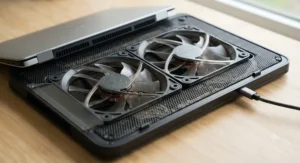
If the multi-fan pads above are garden hoses, the IETS GT500 is a fire hose. A single industrial-grade turbofan spins up to 5,000 RPM, paired with a detachable sealed foam ring that presses against the laptop’s underside to lock airflow directly into the intake vents instead of letting it scatter. IETS has built cooling pads for roughly a decade, and the GT500 carries a patent on this sealed-chamber approach, which several review outlets have singled out as genuinely more effective than open multi-fan designs. Reviewers who ran it against gaming laptops with rear-exhaust designs specifically praised how the bottom-intake setup eliminates the heat-recirculation problem those laptops are prone to. The fan speed is infinitely adjustable from 0 to 5,000 RPM, so you can throttle it back for office work and open it up during a render or a raid boss fight.
The trade-off is noise: at maximum speed the GT500 can hit roughly 65 decibels, noticeably louder than normal conversation, and aggregated reviews consistently flag this as the pad’s biggest downside. It also ships with a dedicated power adapter rather than relying on USB power alone, which adds a cord but delivers more consistent current to the turbofan.
Pros:
- ✅ Sealed foam chamber concentrates airflow far more effectively
- ✅ Infinitely variable speed from silent to maximum
- ✅ Removable, washable dust filter protects laptop intakes
Cons:
- ❌ Can reach roughly 65dB at full speed
- ❌ Requires a separate power adapter, not just USB
At $70-90, the IETS GT500 sits in premium territory but well below the flagship smart-control pads, making it the value pick for anyone who genuinely needs turbofan-level cooling.
6. llano V12 Ultra — smartest AI-driven cooling
The llano V12 Ultra is the pad for people who want their cooling automated rather than manually dialed in. A 5.5-inch turbofan capable of up to 2,800 RPM pairs with llano’s Myth.cool software, which reads the laptop’s workload and automatically shifts between Low, Medium, and High fan modes rather than making you guess when to crank things up. On paper this means less babysitting during long gaming or rendering sessions — the pad reacts instead of waiting for you to notice thermal throttling has already kicked in. One independent reviewer testing the V12 Ultra under a 17-inch RTX 4080 gaming laptop measured CPU temperatures dropping from 96°C to 74°C during a sustained Cyberpunk 2077 session, a 22-degree swing that lines up with llano’s own lab-tested claims, though buyers should note manufacturer figures like this represent best-case conditions rather than a guarantee for every laptop.
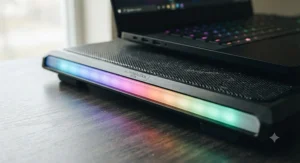
Beyond the smart software, the V12 Ultra includes a 3-port USB 3.0 hub for high-speed peripherals, a removable dust filter, and RGB lighting with several presets. It’s built specifically for 15.6 to 19 inch gaming laptops, so smaller ultrabooks aren’t the target audience here.
Pros:
- ✅ AI-driven fan modes remove the guesswork
- ✅ Independently measured 22°C temperature drop in testing
- ✅ 3-port USB 3.0 hub with fast 5Gbps transfer
Cons:
- ❌ Software currently requires Windows 10 64-bit or newer
- ❌ Overkill and oversized for 13-14 inch laptops
Priced around $130-170 depending on bundle, the llano V12 Ultra is a serious investment best justified by laptops that run genuinely hot under sustained load.
7. Razer Laptop Cooling Pad — best premium all-rounder
The Razer Laptop Cooling Pad is the most polished product in this roundup, and Razer’s reputation for design-forward peripherals shows in the details: a single 140mm fan spinning up to roughly 3,000 RPM sits inside an airtight pressure chamber, with magnetically attached frames that adapt the platform to 14, 16, or 18-inch laptops. What most buyers overlook is that the fan control here isn’t just adjustable — it’s genuinely intelligent, dynamically shifting speed based on real-time laptop temperature through Razer Synapse, with the option to build fully custom fan curves if you want manual control instead. Reviewers who tested it against Razer’s own Blade laptops found the pairing enables an extra performance mode called HyperBoost, though the pad still functions as a strong general-purpose cooler on non-Razer hardware.
Aggregated customer reviews on Best Buy sit at 4.5 out of 5 across a large sample, with buyers specifically calling out the cooling performance and build quality; the most common complaint is the premium price relative to cheaper multi-fan alternatives, and a few reviewers mention the fan can get audibly loud at its highest setting, similar to the IETS GT500.
Pros:
- ✅ Dynamic, temperature-based intelligent fan control
- ✅ Interchangeable magnetic frames fit three laptop sizes
- ✅ Airtight pressure chamber for genuinely focused airflow
Cons:
- ❌ Among the most expensive pads in this roundup
- ❌ Fan noise climbs noticeably at maximum RPM
At roughly $150-170, the Razer Laptop Cooling Pad is a premium purchase, but for owners of high-performance 16-18 inch gaming laptops who want smart control without fiddling with third-party software, it’s a legitimately strong all-rounder.
Full Spec Comparison: All 7 Laptop Cooling Pads
| Product | Fans | Max Speed | Height Adjust | Price Range | Best For |
|---|---|---|---|---|---|
| HAVIT HV-F2056 | 3 | ~1,100 RPM (65 CFM) | 2 settings | Under $40 | Quiet daily use |
| TECKNET Laptop Cooling Pad | 3 | ~1,200 RPM | 2 settings | $25-35 | Ultra-portable use |
| KLIM Wind | 4 | 1,200-1,400 RPM | Fixed incline | $40-50 | Balanced multi-fan value |
| Kootek Chill Mat 5 | 5 | Independent zones | 6 settings | $35-50 | Ergonomics-first buyers |
| IETS GT500 | 1 turbofan | 5,000 RPM | 2-3 settings | $70-90 | Hot-running gaming laptops |
| llano V12 Ultra | 1 turbofan | 2,800 RPM | 3 settings | $130-170 | Smart, automated cooling |
| Razer Laptop Cooling Pad | 1 | ~3,000 RPM | Frame-based | $150-170 | Premium all-rounder |
Lay the numbers side by side and the market splits cleanly into two camps: multi-fan pads that spread modest airflow across a wide surface, and single-turbofan pads that concentrate serious force through a sealed chamber. If your laptop’s internal fans already keep it under 80°C during normal use, a multi-fan pad like the KLIM Wind or Kootek Chill Mat 5 is plenty. If you’re regularly seeing thermal throttling warnings during gaming or rendering, the IETS GT500 or llano V12 Ultra‘s turbofan design is doing meaningfully more work per dollar spent, even though the sticker price is higher.
How to Choose the Best Laptop Cooling Pad
Picking the right cooling pad comes down to matching the product to your actual thermal problem, not just grabbing whichever one has the most fans pictured on the box. Here’s the criteria that actually move the needle:
- Check your laptop’s current temps first. Use a free tool like HWMonitor or Core Temp to see where your CPU sits under load. If you’re not cracking 85°C, a budget multi-fan pad solves the problem; turbofan pads are solving a bigger issue than you have.
- Match fan design to your laptop size. Multi-fan pads spread airflow across a wide 15-17 inch chassis well, while single turbofan designs with sealed foam work best when centered precisely over one dense intake zone.
- Weigh noise tolerance honestly. A pad that hits 65dB at full speed is louder than normal conversation — fine in a gaming room with a headset on, less fine in a shared office.
- Look at USB power delivery. Budget and mid-range pads draw power from a single USB port; heavier turbofan units often need a wall adapter for consistent current, which is one more cable to manage.
- Consider height adjustability separately from cooling. A six-position stand like the Kootek Chill Mat 5 helps your neck and wrists even on days you don’t need extra cooling at all.
- Factor in portability if you travel. Slim three-fan pads under two pounds fit in a laptop sleeve; turbofan units with dedicated adapters are closer to a desk accessory.
- Read aggregated review themes, not star ratings alone. A 4.5-star average tells you little; look for repeated mentions of noise, durability, or USB pass-through quality across dozens of reviews.
Fan Airflow CFM Explained: What the Numbers Actually Mean
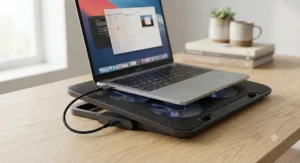
CFM stands for cubic feet per minute, and it measures the total volume of air a fan can move rather than how fast that air travels. This distinction matters more than most product listings let on. A pad rated at 65 CFM, like the HAVIT HV-F2056, is moving a genuinely useful volume of air, but CFM figures on cheaper pads are often measured with the fan running in open air rather than pressed against a laptop’s actual vent layout, so real-world cooling can undershoot the spec sheet number.
What most buyers overlook about CFM is that raw volume matters less than where that air actually ends up. This is exactly why sealed-chamber designs like the IETS GT500 can outperform a higher fan-count pad on paper: the foam gasket stops air from leaking out the sides before it reaches the laptop’s intake, so a smaller volume of air gets used far more efficiently. If you’re comparing two pads purely by CFM number without accounting for whether the design seals against the laptop or just blows generally upward, you’re not comparing apples to apples. As Puget Systems explains in its thermal throttling guide, a cooling solution only helps if it can dissipate heat at least as fast as the chip generates it, which is exactly why a smaller volume of well-directed air can outperform a larger volume of scattered airflow.
vs Basic Multi-Fan Pads: multi-fan pads distribute a given CFM total across a wider surface, which helps laptops with vents spread across the chassis but dilutes force at any single point. vs Sealed Turbofan Pads: turbofan pads concentrate a smaller CFM figure through a gasket-sealed chamber, delivering more effective cooling per fan despite often lower total volume.
Laptop Cooling Pad vs Other Cooling Methods
A cooling pad isn’t the only way to fight laptop heat, and it’s worth being honest about where it fits relative to the alternatives. Internal repasting — replacing a laptop’s factory thermal paste with a higher-performance compound — can lower temperatures by a similar or greater margin than an external pad, but it typically voids warranty coverage and requires opening the chassis, which most owners understandably avoid. Undervolting, a software-based approach that reduces the voltage sent to the CPU without lowering its clock speed, can meaningfully cut heat output at zero cost, though it requires some technical comfort and doesn’t help at all with GPU-heavy workloads the way a physical cooling pad does.
| Method | Typical Temp Impact | Cost | Risk Level |
|---|---|---|---|
| Cooling pad (e.g. KLIM Wind) | 5-15°C reduction | $25-170 | Zero — fully external |
| Repasting | 10-20°C reduction | $10-30 in materials | Voids warranty, some skill needed |
| Undervolting | 5-10°C reduction | Free | Low, but requires stability testing |
| Elevated stand only | 2-5°C reduction | $15-40 | Zero |
Reading the comparison above, cooling pads sit in a genuinely useful middle ground: less invasive than repasting, more immediately effective than undervolting alone, and combinable with either. Buyers who want maximum thermal headroom without opening their laptop often layer an undervolt with a turbofan pad like the IETS GT500, getting software-level and hardware-level relief at once.
✨ Don’t Miss These Exclusive Deals!
🔍 Take your laptop cooling setup to the next level with these carefully selected products. Click on any highlighted item to check current pricing and availability. These picks will help you create a genuinely cooler, quieter workspace your future self will thank you for!
Common Mistakes When Buying a Laptop Cooling Pad
Even well-intentioned buyers trip over a few recurring pitfalls when shopping this category. First, sizing mismatches are common — a pad rated for “up to 17 inches” may technically fit an 18-inch gaming laptop, but the vent alignment can be off enough that airflow misses the actual intake entirely. Second, plenty of shoppers assume more fans automatically means more cooling, when in practice a single well-sealed turbofan like the IETS GT500 can outperform five weaker fans spread thin. Third, noise tolerance gets underestimated until the product arrives — that 65dB spec on a box sounds abstract until it’s actually running next to you during a late-night gaming session.
A fourth mistake worth flagging: buying a pad expecting it to fix a laptop that’s already caked in internal dust. Reviewers across nearly every product in this list note that cooling pads help most when paired with basic laptop maintenance, not as a substitute for it. If your fans are already fighting years of dust buildup internally, an external pad is treating a symptom rather than the root cause.
What to Expect: Real-World Laptop Temperature Reduction
Manufacturer claims of 20, 30, even 44 degree temperature drops sound impressive, but they’re almost always measured under lab conditions with specific laptops and specific ambient temperatures — real-world laptop temperature reduction tends to be more modest and more variable. Based on the spec comparisons and independent reviewer data gathered for this guide, a realistic range for a genuinely effective pad sits between 8 and 20°C off sustained CPU package temperatures, with multi-fan budget pads at the lower end and sealed turbofan units at the higher end.
What the spec sheet won’t tell you, but reviewers note repeatedly, is that the biggest real-world gains show up not as a lower peak temperature but as fewer thermal throttling events — meaning your CPU spends more time at its intended clock speed instead of periodically downclocking to cool off. That’s the practical benefit that actually shows up as smoother frame rates or faster render completion, even when the raw temperature number only drops a modest amount.
Ergonomic Angle Stands: Comfort Meets Cooling
Cooling isn’t the only reason to put your laptop on a raised stand. Laptop screens sit noticeably lower than a desktop monitor by design, and research on computer workstation posture consistently points to a specific problem: users tilt their heads down for hours to compensate, and that sustained neck flexion is a well-documented contributor to musculoskeletal strain. A cooling pad with adjustable height settings, like the six-position Kootek Chill Mat 5, does double duty here — raising the screen toward a more neutral eye level while also improving airflow underneath.
According to ergonomics guidance summarized by Harvard Health Publishing, viewing angle makes a measurable difference in neck and shoulder strain, and simply propping a device at a steeper angle reduced discomfort in controlled research. That’s a strong argument for treating the height-adjustment feature on a cooling pad as more than a marketing bullet point — for anyone spending six-plus hours a day at a laptop, an ergonomic angle stand is doing real preventive work alongside the thermal benefit. Oregon OSHA’s guide to evaluating a computer workstation makes a similar point about screen positioning more broadly, noting that excessive neck deviation from prolonged poor screen placement is a recognized workplace strain risk worth actively designing around.
Long-Term Cost & Maintenance
A laptop cooling pad is a small upfront cost with a payoff that compounds over time. Thermal stress is one of the more common reasons laptop components fail early — repeated heat cycling degrades solder joints and shortens the practical lifespan of a battery and motherboard alike. Spending $40 on a pad like the KLIM Wind to consistently shave 10°C off sustained temperatures is cheap insurance against a repair bill that can run into the hundreds of dollars.
Maintenance itself is minimal but not zero. Fans accumulate dust just like any other moving part, and pads with a removable filter — the IETS GT500 and llano V12 Ultra both include one — are meaningfully easier to keep running at rated performance than sealed models that require a full teardown to clean. Budget pads without a filter should still get a monthly once-over with a can of compressed air aimed at the fan blades and intake mesh, since a dust-clogged cooling pad fan is working against itself.
Setting Up Your Cooling Pad the Right Way
Getting the most out of any laptop cooling pad comes down to a handful of setup details that manufacturers rarely spell out clearly. First, make sure your laptop’s actual vent locations line up with the pad’s fan positions — flip your laptop over, note where the intake grilles sit, and center them over the strongest fans rather than just centering the laptop on the pad visually. Second, never place the cooling pad itself on a soft surface like a bed or couch cushion; the pad needs airflow beneath it too, and blocking its own intake defeats the purpose entirely.
Third, for USB-powered pads, plug directly into a laptop port rather than through a hub when possible — some multi-port hubs limit current delivery enough to slow fan speed below rated RPM. Fourth, for the first 30 days, keep an eye on actual temperature readings using a free monitoring tool rather than judging performance by feel; a pad can sound powerful while barely lowering temps if it’s misaligned, and you’ll only catch that with real numbers. Finally, clean the fan intake monthly with compressed air, and for sealed turbofan models like the IETS GT500, pull and rinse the foam gasket every few months to keep the seal effective — a dirty or compressed gasket loses its pressure advantage over time.
Real-World Scenarios: Who Actually Needs a Cooling Pad
The dorm-room gamer: A college student running a mid-range gaming laptop for evening sessions, sharing a small room, and needing to keep noise reasonable for a roommate. The HAVIT HV-F2056 or TECKNET Laptop Cooling Pad fits well here — quiet enough not to draw complaints, light enough to travel between dorm and home, and effective enough for moderate gaming loads.
The remote video editor: A freelancer exporting 4K timelines for hours on a 16-inch laptop that regularly hits uncomfortable surface temperatures on their lap. The llano V12 Ultra‘s smart software makes sense here, automatically ramping cooling during render jobs without requiring constant manual adjustment between editing and exporting.
The competitive gamer with a hot-running rig: Someone running a high-wattage RTX-class laptop for multi-hour ranked sessions who has already noticed frame drops during long matches. The IETS GT500 or Razer Laptop Cooling Pad delivers the concentrated airflow needed to keep a genuinely demanding machine from throttling, even if that means accepting more fan noise and a higher price tag.

Frequently Asked Questions
❓ Do laptop cooling pads actually work?
❓ What CFM rating is good for a laptop cooling pad?
❓ Is a 5-fan or 3-fan cooling pad better?
❓ Can a cooling pad damage my laptop?
❓ How much does a good laptop cooling pad cost?
Conclusion
The right laptop cooling pad depends entirely on the problem you’re actually solving. If your laptop runs warm but not alarmingly so, the HAVIT HV-F2056 or KLIM Wind delivers real, quiet relief without breaking the budget. If you’ve genuinely watched your frame rates dip mid-session or felt your laptop turn into a hand warmer during a render job, the concentrated force of the IETS GT500 or the automated intelligence of the llano V12 Ultra is worth the higher price tag. And if ergonomics matter as much as thermals to you, the six-position Kootek Chill Mat 5 quietly does double duty most buyers don’t think to prioritize.
None of these seven products is a magic fix for a laptop with deeper thermal design flaws, and none of them replaces basic maintenance like keeping internal fans free of dust. But paired with realistic expectations, a well-matched cooling pad is one of the cheapest, lowest-risk upgrades you can make to a laptop that’s starting to show its age under heat. Pick based on your actual usage pattern, not the biggest number on the box, and you’ll end up with a pad you actually keep using.
Recommended for You
- 7 Best Fan for Power Outage Picks in 2026
- Battery Fan for Camping: 7 Best Picks That Actually Survive 2026
- 7 Best Battery Powered Box Fans of 2026
Disclaimer: This article contains affiliate links. As an Amazon Associate, I earn from qualifying purchases. If you purchase products through these links, we may earn a small commission at no additional cost to you.
✨ Found this helpful? Share it with your friends! 💬🤗
